

 By rssfeeds-admin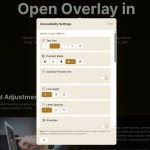
The widget uses Shadow DOM for its own UI and injects page-level CSS for the selected adjustments. Works in regular browser pages through an ES module script. You do not need jQuery or a framework.
Features:
- Adjusts text size across five readable levels.
- Changes contrast with normal, high contrast, inverted, dark, and light modes.
- Applies a dyslexia-friendly font.
- Changes line height and letter spacing across three levels.
- Applies grayscale and saturation changes.
- Adds color vision filters for common vision profiles.
- Stops page animations for motion-sensitive users.
- Enlarges the cursor.
- Adds a reading guide under the pointer.
- Highlights keyboard focus targets.
- Highlights headings for faster page scanning.
- Highlights links across the page.
- Generates image alt text in supported Chrome builds.
- Converts page text to plain language in supported Chrome builds.
- Reads selected text through the browser speech API.
- Stores visitor settings in local storage.
- Supports English and German UI text.
- Loads custom translation files from a JSON folder.
How to use it:
1. Open Overlay ships as a plain ES module. Download the package, then add the following files at the end of your closing <body> tag. The i18n-path attribute tells the component where to find the JSON translation files.
<!-- Mounts the accessibility widget on the page. -->
<open-overlay-widget i18n-path="./i18n"></open-overlay-widget>

<!-- Loads the Web Component as a native ES module. -->
<script type="module" src="./src/open-overlay.js"></script>
2. That’s it!. The button appears in the lower-right corner. The widget keeps selected settings in localStorage, so a browser refresh keeps the user’s choices.
3. Use CSS custom properties when the default panel style does not match your site.
/* Styles the widget UI through exposed CSS variables. */
open-overlay-widget {
    --oo-primary: #9a6a21;
    --oo-primary-hover: #7d5518;
    --oo-bg: #fffaf0;
    --oo-surface: #f1eadc;
    --oo-surface-hover: #e5dbc8;
    --oo-text: #1e211b;
    --oo-text-secondary: #6d665b;
    --oo-border: #d8cbb8;
    --oo-radius: 10px;
    --oo-shadow: 0 22px 60px rgba(67, 51, 25, 0.22);
    --oo-font-family: Inter, system-ui, sans-serif;
}
4. Add a new language by creating a JSON file in the i18n/ directory using the same key structure as en.json.
{
  "widget.title": "Accessibility Settings",
  "widget.toggle.open": "Open accessibility settings",
  "widget.toggle.close": "Close accessibility settings",
  "skip.nav": "Skip to accessibility settings",
  "section.visual": "Visual Adjustments",
  "section.content": "Content",
  "section.navigation": "Navigation",
  "section.language": "Language",
  "text.size.label": "Text Size",
  "text.size.small": "Small",
  "text.size.default": "Default",
  "text.size.large": "Large",
  "text.size.xlarge": "Extra Large",
  "text.size.xxlarge": "XXL",
  "contrast.label": "Contrast Mode",
  "contrast.normal": "Normal",
  "contrast.high": "High Contrast",
  "contrast.inverse": "Inverted",
  "contrast.dark": "Dark Mode",
  "contrast.light": "Light Mode",
  "font.dyslexic.label": "Dyslexia-Friendly Font",
  "font.dyslexic.enable": "Enable",
  "font.dyslexic.disable": "Disable",
  "line.height.label": "Line Height",
  "line.height.normal": "Normal",
  "line.height.relaxed": "Relaxed",
  "line.height.loose": "Loose",
  "letter.spacing.label": "Letter Spacing",
  "letter.spacing.normal": "Normal",
  "letter.spacing.wide": "Wide",
  "letter.spacing.wider": "Wider",
  "grayscale.label": "Grayscale",
  "grayscale.enable": "Enable",
  "grayscale.disable": "Disable",
  "saturation.label": "Saturation",
  "saturation.increase": "Increase",
  "saturation.decrease": "Decrease",
  "saturation.reset": "Reset",
  "color.vision.protanopia.label": "Color Vision Filter",
  "color.vision.protanopia": "Protanopia",
  "color.vision.deuteranopia": "Deuteranopia",
  "color.vision.tritanopia": "Tritanopia",
  "color.vision.none": "No Filter",
  "animation.stop.label": "Stop Animations",
  "animation.stop.enable": "Enable",
  "animation.stop.disable": "Disable",
  "cursor.size.label": "Cursor Size",
  "cursor.size.normal": "Normal",
  "cursor.size.large": "Large",
  "cursor.size.xlarge": "Extra Large",
  "reading.guide.label": "Reading Guide",
  "reading.guide.enable": "Enable",
  "reading.guide.disable": "Disable",
  "focus.highlight.label": "Highlight Focus",
  "focus.highlight.enable": "Enable",
  "focus.highlight.disable": "Disable",
  "highlight.headings.label": "Highlight Headings",
  "highlight.headings.enable": "Enable",
  "highlight.headings.disable": "Disable",
  "highlight.links.label": "Highlight Links",
  "highlight.links.enable": "Enable",
  "highlight.links.disable": "Disable",
  "alt.text.generate.label": "Generate Alt Text",
  "alt.text.generate.enable": "Enable",
  "alt.text.generate.disable": "Disable",
  "easy.language.label": "Plain Language",
  "easy.language.enable": "Enable",
  "easy.language.disable": "Disable",
  "text.to.speech.label": "Text-to-Speech",
  "text.to.speech.enable": "Enable",
  "text.to.speech.disable": "Disable",
  "language.select.label": "Widget Language",
  "language.de": "Deutsch",
  "language.en": "English",
  "reset.all.label": "Reset All Settings",
  "reset.all.confirm": "Are you sure you want to reset all settings?",
  "reset.all.button": "Reset",
  "close.label": "Close",
  "status.active": "Active",
  "status.inactive": "Inactive",
  "disclaimer.title": "Note",
  "disclaimer.text": "This widget provides additional customization tools. It does not replace full website accessibility and cannot fix structural barriers."
}
Alternatives:
The post Add an Floating Accessibility Panel via Web Component – Open Overlay appeared first on CSS Script.
Discover more from RSS Feeds Cloud
Subscribe to get the latest posts sent to your email.