

 By rssfeeds-admin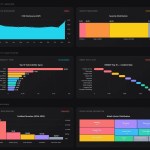
It currently supports 9 chart types (column, bar, line, area, progress, waterfall, heatmap, treemap, and gauge) and uses ResizeObserver to keep charts responsive across container size changes.
More Features:
- Multi-series support with grouped and stacked modes for column and bar charts.
- Pixel-perfect sizing with integer pixel calculations and remainder distribution for crisp edges.
- Entry animations with configurable stagger and smooth hover transitions.
- Interactive tooltips on hover with bidirectional label sync for bar and waterfall charts.
- Highlight mode that dims sibling items on hover.
- Configurable color palette, gap spacing, gauge thickness, and label alignment.
- Dark and light themes.
How To Use It:
1. Download neo-charts.js and neo-charts.css and load them in your HTML:
<link rel="stylesheet" href="neo-charts.css">
<script src="neo-charts.js"></script>
2. Add an empty div element to your page. The library will inject the DOM-based chart elements here.
<div class="server-load-chart"></div>
3. Initialize Neo Charts and create a column chart to display server CPU load
var myChart = neoCharts('.server-load-chart', {
    title: { text: 'Server CPU Load', align: 'left' },
    type: 'column',
    layout: { width: '100%', height: '300px' },
    data: {
      series: [{
        title: 'Node Alpha',
        values:[45, 82, 38, 91, 64],
        labels:['08:00', '09:00', '10:00', '11:00', '12:00'],
        color: ['#ff3d00'],
        suffix: '%'
      }]
    }
});
4. Configuration options.
type(string): Chart type. Acceptscolumn,bar,line,area,progress,waterfall,heatmap,treemap, orgauge. Defaults to'column'.cssClass(string): An additional CSS class appended to the chart container. Defaults to''.highlight(boolean): Dims sibling chart items when the user hovers over one. For bar and waterfall charts, this syncs bidirectionally with the y-axis labels. Defaults tofalse.animate(boolean): Runs staggered entry animations on initial render. Defaults totrue.legend(boolean): Displays a legend when the chart has multiple series. Defaults totrue.smooth(boolean): Applies Catmull-Rom spline interpolation to line and area charts. Defaults tofalse.fit(boolean): Fits the chart tightly to its container bounds. Defaults tofalse.gap(number): Gap in pixels between bars, columns, or treemap cells. Defaults to2.theme(string): Color theme. Accepts'dark'or'light'. Defaults to'dark'.gauge.thickness(number): Ring thickness in pixels for gauge charts. Defaults to14.gauge.valueFontSize(number): Font size in pixels for the gauge’s center value. Defaults to48.title.text(string): Chart title text. Defaults to'Neo Charts'.title.subtitle(string): Subtitle text rendered below the main title. Defaults to''.title.align(string): Horizontal alignment of the title block. Accepts'left','center', or'right'. Defaults to'right'.layout.width(string): Chart width as a CSS value (e.g.,'100%'or'640px'). Defaults to'100%'.layout.height(string): Chart height as a CSS value, or'auto'to size based on content. Defaults to'300px'.layout.lines.number(number): Number of guideline lines rendered across the plot area. Defaults to4.layout.lines.align(string): Position of guideline value labels. Accepts'left'or'right'. Defaults to'right'.data.render.margin(number): Additional spacing between chart items as a percentage. Defaults to0.data.render.stacked(boolean): Stacks multiple series for column and bar charts. Defaults tofalse.data.render.threshold(array): Array of threshold line values to draw across the chart. Defaults to[].data.series(array): Array of series objects. See the Series Object reference below. Defaults to[].onClick(function): Callback fired when the user clicks a chart item. Receives an event data object and the native click event. Defaults tonull.onHover(function): Callback fired when the user moves the pointer over a chart item. Receives an event data object and the mouseover event. Defaults tonull.
var myChart = neoCharts('.server-load-chart', {
    type: 'column',
    cssClass: '',
    title: {
      text: 'Neo Charts',
      subtitle: '',
      align: 'right'
    },
    layout: {
      width: '100%',
      height: '300px',
      lines: {
        number: 4,
        align: 'right'
      }
    },
    gap: 2,
    fit: false,
    gauge: {
      thickness: 14,
      valueFontSize: 48
    },
    highlight: false,
    animate: true,
    legend: true,
    smooth: false,
    theme: 'dark',
    onClick: null,
    onHover: null,
    data: {
      render: {
        empty: 'No data available.',
        stacked: false,
        threshold: []
      },
      series: []
    }
});
5. Series Object Properties:
title(string): Series name, displayed in the legend and tooltip header.values(number[]): Array of numeric data points. For gauge charts, pass[current, min, max].labels(string[]): Array of label strings, one per data point.outputValues(string[]): Custom display strings for tooltips and value labels (e.g.,['1.2K', '3.4M']). The library falls back to raw numeric values when this array is empty.color(string[]): One color string for the whole series, or one per item. The library cycles through a 10-color built-in palette when this property is omitted:#3b82f6,#10b981,#f59e0b,#ef4444,#8b5cf6,#ec4899,#06b6d4,#f97316,#6366f1,#14b8a6.prefix(string): String prepended to displayed values (e.g.,'$').suffix(string): String appended to displayed values (e.g.,'%').decimals(number): Decimal places shown in tooltips. Defaults to3.
6. API methods.
// Merge newOptions with the original options and re-render the chart.
// Returns a new API object — reassign the variable after calling this.
chart = chart.update({
  data: {
    series: [{
      values: [500, 620, 480, 710]
    }]
  }
});

// Remove the chart from the DOM. Disconnects all event listeners,
// the ResizeObserver, and any active requestAnimationFrame loops.
// Call this before removing or reusing the container element.
chart.destroy();

// Access the DOM element that contains the rendered chart.
var container = chart.element;
7. Event callbacks:
// onClick fires when the user clicks any chart item.
// The data object exposes series and item metadata.
neoCharts('.click-chart', {
  type: 'bar',
  onClick: function(data, event) {
    // data.seriesIndex  — index of the clicked series
    // data.index        — index of the item within that series
    // data.value        — numeric value of the clicked item
    // data.label        — label string of the clicked item
    // data.seriesTitle  — title of the parent series
    // data.element      — the DOM element of the clicked item
    console.log('Selected:', data.label, '→', data.value);
  },
  data: {
    series: [{ values: [120, 95, 210], labels: ['Product A', 'Product B', 'Product C'] }]
  }
});
// onHover fires when the pointer enters a chart item.
// Use it to update external UI elements in sync with the chart.
neoCharts('.hover-chart', {
  type: 'column',
  onHover: function(data, event) {
    document.getElementById('tooltip-label').textContent = data.label + ': ' + data.value;
  },
  data: {
    series: [{ values: [55, 80, 65], labels: ['Mon', 'Tue', 'Wed'] }]
  }
});
FAQs:
Q: Does Neo Charts work with React or Vue?
A: Yes. In React, call neoCharts(containerRef.current, options) inside a useEffect hook and return chart.destroy as the cleanup function. In Vue 3, use onMounted to initialize and onBeforeUnmount to destroy.
Q: My column chart shows misaligned bars or fractional gaps. What’s wrong?
A: This typically happens when the container element reports a fractional clientWidth. Certain CSS Grid or Flexbox layouts compute sub-pixel widths. Set an explicit pixel width on the container element, or confirm that box-sizing: border-box applies to it and that no padding contributes a fractional value.
Q: Can I render multiple independent charts on the same page?
A: Yes. Each neoCharts() call operates on one container element, registers its own ResizeObserver, and stores its own state in the returned API object.
Q: Does the gauge type support multiple concentric rings?
A: The current version accepts one series per gauge chart. The first value in series[0].values is the current reading; the second and third are the minimum and maximum bounds.
The post Responsive CSS Chart Library For Web – Neo Charts appeared first on CSS Script.
Discover more from RSS Feeds Cloud
Subscribe to get the latest posts sent to your email.