

 By rssfeeds-admin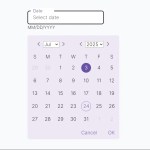
The date picker defaults to today’s date and dynamically generates a calendar view. It calculates and renders dates spanning one year in the past and three years into the future from the current date.
How to use it:
1. Load the necessary Bootstrap Icons and Bootstrap 5’s stylesheet in the document.
<link href="/path/to/cdn/bootstrap.min.css" rel="stylesheet">
<link href="/path/to/cdn/bootstrap-icons.min.css" rel="stylesheet">
2. Place the HTML for the date picker where you want it to appear. The datepicker-container uses position-relative to correctly position the dropdown calendar.
<div class="datepicker-container position-relative">
  <div
    class="date-input-wrapper mx-auto mb-3 position-relative"
    >
    <label
      for="date"
      class="small position-absolute bg-white px-2 z-2"
      >Date</label
      >
    <input
      type="text"
      class="date-input px-3 py-2 rounded"
      placeholder="Select date"
      name="date"
      id="date"
      />
    <p class="small">MM/DD/YYYY</p>
  </div>
  <div
    id="datePicker"
    class="datepicker p-2 rounded position-absolute z-3 d-none"
    >
    <div
      class="datepicker-header d-flex justify-content-around mt-2 mb-3"
      >
      <div
        class="datepicker-month d-flex justify-content-between align-items-center"
        >
        <button class="prev" id="prevMonthBtn">
        <i class="bi bi-chevron-left"></i>
        </button>
        <select
          name="month-input"
          id="month-input"
          class="month-input"
          >
          <option value="0">Jan</option>
          <option value="1">Feb</option>
          <option value="2">Mar</option>
          <option value="3">Apr</option>
          <option value="4">May</option>
          <option value="5">Jun</option>
          <option value="6">Jul</option>
          <option value="7">Aug</option>
          <option value="8">Sep</option>
          <option value="9">Oct</option>
          <option value="10">Nov</option>
          <option value="11">Dec</option>
        </select>
        <button class="next" id="nextMonthBtn">
        <i class="bi bi-chevron-right"></i>
        </button>
      </div>
      <div
        class="datepicker-year d-flex justify-content-between align-items-center"
        >
        <button class="prev" id="prevYearBtn">
        <i class="bi bi-chevron-left"></i>
        </button>
        <select
          name="year-input"
          id="year-input"
          class="year-input"
          ></select>
        <button class="next" id="nextYearBtn">
        <i class="bi bi-chevron-right"></i>
        </button>
      </div>
    </div>
    <!-- days -->
    <div class="days text-center my-2">
      <span>S</span>
      <span>M</span>
      <span>T</span>
      <span>W</span>
      <span>T</span>
      <span>F</span>
      <span>S</span>
    </div>
    <!-- dates -->
    <div class="dates my-2"></div>
    <div
      class="datepicker-footer d-flex justify-content-end gap-4 mt-3"
      >
      <button type="button" class="cancel-btn">
      Cancel
      </button>
      <button type="button" class="ok-btn">OK</button>
    </div>
  </div>
</div>
3. Add the following CSS to style the date picker. It handles the appearance of the input, the calendar dropdown, and the individual date buttons.
.date-input-wrapper {
  width: fit-content;
}

.date-input-wrapper label {
  color: #6750a4;
  top: -10px;
  left: 10px;
}

.date-input {
  font-size: 1rem;
  border: 2px solid #6750a4;
}

.datepicker {
  background-color: #eee8f5;
  top: 100%;
}

.datepicker button {
  cursor: pointer;
  border: none;
  border-radius: 100px;
  background: transparent;
  transition: all 0.3s;
}

.days,
.dates {
  display: grid;
  grid-template-columns: repeat(7, 32px);
  gap: 10px;
}

.dates button {
  aspect-ratio: 1;
}

.dates button:hover {
  background: #6750a4;
  color: #eee8f5;
  border: 1px solid #6750a4;
}

.dates button:disabled {
  opacity: 0.75;
  pointer-events: none;
  user-select: none;
}

.dates button.today {
  background: transparent;
  border: 1px solid #6750a4;
  color: #6750a4;
}

.dates button.selected {
  background: #6750a4;
  color: #fff;
  border: 1px solid #6750a4;
}

.datepicker-footer button {
  color: #6750a4;
}

.datepicker-footer button:hover {
  background: #6750a4;
  color: #fff;
}

@media (max-width: 380px) {
  .datepicker {
    left: -18%;
  }
}
4. Include the JavaScript to activate the date picker. This script handles all the logic for rendering the calendar and managing user interactions.
const dateInput = document.getElementById('date');
const datePicker = document.getElementById('datePicker');
const cancelBtn = document.querySelector('.cancel-btn');
const okBtn = document.querySelector('.ok-btn');
const nextMonthBtn = document.getElementById('nextMonthBtn');
const prevMonthBtn = document.getElementById('prevMonthBtn');
const monthInput = document.getElementById('month-input');
const nextYearBtn = document.getElementById('nextYearBtn');
const prevYearBtn = document.getElementById('prevYearBtn');
const yearInput = document.getElementById('year-input');
const dates = document.querySelector('.dates');

let selectedDate = new Date();
let year = selectedDate.getFullYear();
let month = selectedDate.getMonth();
let maxYear = new Date().getFullYear() + 3;
let minYear = new Date().getFullYear() - 1;

dateInput.addEventListener('click', () => {
  datePicker.classList.remove('d-none');
});

cancelBtn.addEventListener('click', () => {
  datePicker.classList.add('d-none');
});

okBtn.addEventListener('click', () => {
  // set the selected date to date input
  dateInput.value = selectedDate.toLocaleDateString('en-US', {
    year: 'numeric',
    month: '2-digit',
    day: '2-digit',
  });
  datePicker.classList.add('d-none');
});

nextMonthBtn.addEventListener('click', () => {
  if (year === maxYear && month === 11) return;
  if (month === 11) year++;
  month = (month + 1) % 12;
  displayDates();
});

prevMonthBtn.addEventListener('click', () => {
  if (year === minYear && month === 0) return;
  if (month === 0) year--;
  month = (month - 1 + 12) % 12;
  displayDates();
});

nextYearBtn.addEventListener('click', () => {
  if (year === maxYear) return;
  year++;
  displayDates();
});

prevYearBtn.addEventListener('click', () => {
  if (year === minYear) return;
  year--;
  displayDates();
});

monthInput.addEventListener('change', () => {
  month = monthInput.selectedIndex;
  displayDates();
});

yearInput.addEventListener('change', () => {
  year = yearInput.value;
  displayDates();
});

const updateYearMonth = () => {
  monthInput.selectedIndex = month;
  yearInput.value = year;
};

const handleDateClick = (e) => {
  const button = e.target;
  // remove the 'selected' class from other buttons
  const selected = dates.querySelector('.selected');
  selected && selected.classList.remove('selected');
  // add the 'selected' class to current button
  button.classList.add('selected');
  // set the selected date
  selectedDate = new Date(year, month, parseInt(button.textContent));
};

// render the dates in the calendar
const displayDates = () => {
  // update year & month whenever the dates are updated
  updateYearMonth();
  // clear the dates
  dates.innerHTML = '';
  // display the last week of previous month
  // get the last date of the previous month
  const lastOfPrevMonth = new Date(year, month, 0);
  for (let i = 0; i <= lastOfPrevMonth.getDay(); i++) {
    const text = lastOfPrevMonth.getDate() - lastOfPrevMonth.getDay() + i;
    const button = createButton(text, true, false);
    dates.appendChild(button);
  }
  // display the current month
  // get the last date of the current month
  const lastOfMonth = new Date(year, month + 1, 0);
  // console.log(lastOfMonth.toDateString());
  for (let i = 1; i <= lastOfMonth.getDate(); i++) {
    const isToday =
      selectedDate.getDate() === i &&
      selectedDate.getFullYear() === year &&
      selectedDate.getMonth() === month;
    const button = createButton(i, false, isToday);
    button.addEventListener('click', handleDateClick);
    dates.appendChild(button);
  }
  // display the first week of next month
  // get the first date of the next month
  const firstOfNextMonth = new Date(year, month + 1, 1);
  for (let i = firstOfNextMonth.getDay(); i < 7; i++) {
    const text = firstOfNextMonth.getDate() - firstOfNextMonth.getDay() + i;
    const button = createButton(text, true, false);
    dates.appendChild(button);
  }
};

const createButton = (text, isDisabled = false, isToday = false) => {
  const button = document.createElement('button');
  button.textContent = text;
  button.disabled = isDisabled;
  button.classList.toggle('today', isToday);
  return button;
};

const generateYears = () => {
  const totalYears = maxYear - minYear;
  for (let i = 0; i <= totalYears; i++) {
    const option = document.createElement('option');
    option.textContent = minYear + i;
    option.value = minYear + i;
    yearInput.appendChild(option);
  }
};

generateYears();
displayDates();
FAQs
Q: How can I change the date format in the input field?
A: You can modify the toLocaleDateString options inside the okBtn event listener. For instance, to use a YYYY-MM-DD format, you could change it to selectedDate.toISOString().split('T')[0], though you’d need to handle timezone offsets carefully. A safer bet is to manually format the string from selectedDate.getFullYear(), getMonth(), and getDate().
Q: Is it possible to extend the year range?
A: Yes. Just change the maxYear and minYear variable declarations at the top of the script. For example, to go ten years into the future, you would set let maxYear = new Date().getFullYear() + 10;. The generateYears function will handle the rest.
Q: Can I customize the Material Design color scheme?
A: The purple color scheme (#6750a4) is defined in the CSS variables. Replace these hex values with your brand colors, but maintain sufficient contrast ratios for accessibility. The hover and selected states should remain visually distinct from the default state.
See Also:
The post Material Design 3 Date Picker with Vanilla JS & Bootstrap 5 appeared first on CSS Script.
Discover more from RSS Feeds Cloud
Subscribe to get the latest posts sent to your email.